Blog ·
Livestream overlays: keep your price visible where the buttons are
Transparent 1080x1920 overlays put your price and free-shipping badge where TikTok's buttons and comments cannot cover them. How the presets work, and the honest limits of safe zones.
You prepared the stream, the lighting is right, and your best offer is displayed dead center, which is exactly where the platform draws its buttons. On a vertical live feed, the interface eats a surprising amount of screen: comment stream on the left, hearts on the right, share and cart rows along the bottom. Sellers solve this with an overlay: a transparent image your streaming software composites over the video, with the offer placed in a spot the interface leaves alone.
What an overlay actually is
Nothing exotic: a PNG with a transparent background at 1080 x 1920. You add it as a source in OBS or whatever tool runs your stream, and it sits on top of your camera feed. Because it is an image, it works the same on TikTok Live, Shopee Live or any other platform; nothing is injected into the app.
Oia ships five such overlays: three portrait presets (a flash-sale price card, a free-shipping badge, a countdown frame) and two landscape ones for host introductions and corner offers. They open as ordinary scenes, so the text on them is a layer you can retype, not paint. When the price drops mid-stream, that matters: change the number, re-export the PNG, no image generation involved.
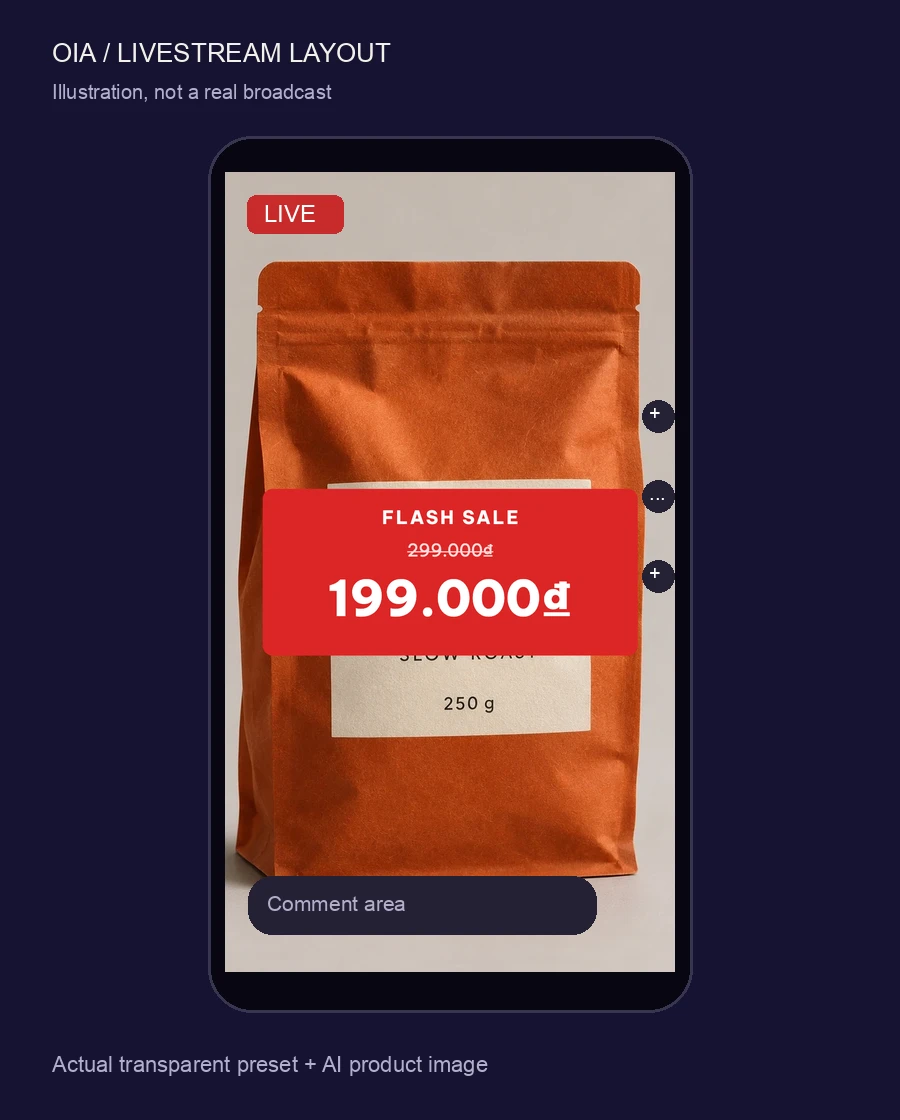
Safe zones, honestly
The editor draws guides marking where the platform’s controls tend to land, so you can keep your price out of the hatched bands. Two honest caveats come with them. These zones are community-measured, not an official specification from TikTok or Shopee, and platforms move their buttons in updates. The guides stay in the editor and never reach the exported PNG, but you should still do one dry run: start a private stream, look at where the interface actually sits on the current app version, then adjust.
Also worth knowing: the countdown preset is a static frame, not a live timer. It reads “ends tonight” well; it will not tick down in real time.
The workflow, start to finish
- Open Templates in Oia and pick the livestream preset that matches your offer.
- Retype the price, the badge text, the countdown wording. Free, no AI needed.
- Watch the safe-zone guides, keep the copy out of the marked bands.
- Export the transparent PNG and add it as an image source in your streaming tool.
- Dry-run once on a private stream before the real one.
For the full walkthrough see the livestream overlays use case. If you also need the stream’s cover image or a matching feed banner, the prompt library has tested prompts for both.
Try it in Oia
Free, open source, no account. AI generation uses your own ChatGPT plan.